


AutoSpectral in Honeychrome

Updated: Jun 16
I'm happy to announce that the AutoSpectral workflow for unmixing is being incorporated into the Honeychrome application. Honeychrome is an open-source, Python-based software that you can download and run, interacting with it like commercial software such as FlowJo or FCS Express. Unlike those, it's free to use.
Most of the development of Honeychrome has been done by Samson Rogers, but I've chipped in for the integration of AutoSpectral. The software is in beta testing, and there are still some bugs with my implementation of AutoSpectral, but we feel it performs well enough to release for testing. This should enable anyone to use the unmixing tools, without having to interact with a black box or enter code. I'll cover more about Honeychrome itself, and how you can contribute it you're a developer, in a separate article. We'll probably also need an article about the cool and very cheap open-source spectral cytometer that accompanies Honeychrome as part of the Cytkit project. Today, let's launch into how to use Honeychrome for unmixing of spectral flow cytometry data.
Note: Honeychrome now supports most major spectral cytometers. If you have data from an instrument that is not supported or does not work, reach out or post an issue on the GitHub.
Update: This article has been updated to reflect minor changes in version 0.8.3.
Installation
First, download and install Honeychrome. Head over to Cytkit and download the installer for your operating system. This should be as simple as downloading and double-clicking to run the installer. If you're more computationally inclined, you can also clone the GitHub repository and run it directly from Python.
We're going to need some data. If you want to do unmixing, you need to start with files containing the raw data. On the ID7000 and the Aurora, you get separate raw files; on BD's machines, you get the raw and unmixed data all in the same file. I'm going to be using the data from the AutoSpectral workflow example, which you can download here, if you need something to work with.
Getting Started
Now, let's open Honeychrome and start working.
You should see this after clicking on Honeychrome's bee "sidekick" icon:

We're going to create a New Experiment.

Type in the name of your experiment. I'm going to call mine AutoSpectral Demo.
To start, you'll get a blank experiment, looking like this.

Head to the View menu up top and untick Acquisition Panel and Gains Panel to hide those and give yourself more space. Those panels are useful when you're using Honeychrome to acquire samples on a cytometer, but we don't need them right now.
Loading Data
Now, first thing is to add our data. Honeychrome organizes your data into folder in the Experiments folder, which will be created on the root of your user directory tree. The simplest way (for most users) to do this is to use the "Import FCS Files" option in the File menu:

Clicking that brings up this window:

If you use Option A, you bring up the folder for the Honeychrome experiment you're working on, and you can drag in FCS files or folders into the Raw folder.

Since you probably already have your FCS files organized nicely in a folder from the cytometer, you can use option B. For this, we're just going to tell Honeychrome where the data already are, no need to move or copy them.

The fields on the righthand side are selectable, so you can click on these to chang the location, telling Honeychrome where each item is. Let's change the location of the "Single Stain Controls Folder" to the copy of the data I've already got. Click on the "Raw/Single stain controls" field to change it.


After linking:

And we can do the same for the "Raw Samples Folder":

Hit "Okay" once you've linked everything. Hit "Update Experiment Configuration".

Honeychrome has found the files and updated the experiment configuration on the basis that these files are from the 5-laser Cytek Aurora.
Et voila! Samples appear:

Notice that any subfolder organization of the "Raw Samples Folder" is maintained.
Interacting With Data
Let's take a moment to look at the data before we jump into the unmixing workflow. Click on any of the samples to load the data on the screen, which by default will be showing the Raw Data tab.
Here's my CD4 BV421 single-stained cell control:

We've got a default FSC/SSC gate and a singlet gate. Then we've got a spectral ribbon plot showing us the data in all the detectors. There's also a 1D histogram for each detector if you scroll down. Gates can be moved, or they can be adjusted by dragging on any of the corners with a small box icon. To change which gate is used to select the data displayed on a plot, click on the title. For example, we could change the spectral ribbon plot to display all events (root), if we wanted to:

The transformations on the axes are adjustable with the mouse, in a way that will likely be familiar to users of the ID7000. Let's create a new plot to play with. Either click the big + sign to create a new plot:

Or, right-click on an existing gate to create a new plot from that set of gated events:

By default, these new plots will appear at the bottom, after all the other plots, which maybe should be changed for the Raw Data tab. Anyway. Click on the axis label markers to change which parameters are displayed:

Drag on the numbers to change the transformation (scaling):

If you drag near zero, you adjust the compression (width basis) of the biexponential transform.

If you drag on the upper portion, you can change the range, increasing or decreasing it. Note: these are not intended to be examples of what the transformation parameters should be, merely examples of how to set them.

Click on another sample to load that data, and so on.
Unmixing using the Spectral Process
The Spectral Process tab is where you isolate your spectral signatures for your fluorophores. Today we're doing unmixing, but you would also use this tab for performing compensation if you were doing conventional flow. There are two workflows for the isolation of the spectral profiles. The basic one uses a standard positive/negative approach, analogous to what you'd get on any cytometer, but largely automated, so it should be pretty quick. I'm not going to touch on that too much today, focusing instead on the AutoSpectral control cleaning workflow that has been integrated here.
When you first open the Spectral Process tab, it will be empty, like so:

There is a Show Help button at the top that you can click for general guidance on how to use it:

This may be hidden again when you're done with it.
To use the AutoSpectral control cleaning workflow, tick the box for "Show AutoSpectral Cleaning". This should bring up the help section for the AutoSpectral control cleaning workflow, which you can again hide when you're done with it.

Let's follow the instructions, shall we?
First, let's change the gates in the Raw Data tab to include most everything.

We just want to be sure that we're capturing the brightest events somewhere in those gates. Beyond that it doesn't matter much, and it will matter even less in the next version.
Next, we need to mark our unstained samples. Marking your unstained samples tells Honeychrome the sample doesn't have fluorophore signals in it. This means the control can be used for determination of the background for single-stained controls and/or autofluorescence extraction. Honeychrome automatically detects anything with the label "Unstained" and marks it as unstained. That's why we've got blue droplets next to the "Unstained (Cells)" sample and the entire folder that I created called "Unstained samples".

That BioLegend Positive Beads control is my unstained beads. Let's mark that accordingly. Right-click and select "Mark as unstained".

Update: For best results in version 0.8.3 onwards, set a default unstained negative sample for the cell controls. Pick the one that is most relevant to any single-stained cell controls you have. For instance, if you have an experiment using splenocytes for your single-stained controls, use unstained spleen here, even if your fully stained samples are something else. This unstained negative is used to figure out which signals in your controls aren't the fluorophore signals. If you don't have any single-stained cell controls (i.e., all your controls are beads), it doesn't matter which unstained negative is selected here.

In the Spectral Process tab, click "Auto generate spectral controls". If you have a lot of controls, this might take a minute or two.
We get a filled in table and a filled in plot (Profiles Viewer) showing the fluorophores in our controls. Honeychrome has automatically detected the dyes (Label column), provided those are in the FCS file names. If you have put your markers in the file names and Honeychrome recognizes them, those will be automatically added to Antigen. You may change both the Label and Antigen to suit your preferences. Fill in stuff that's missing, since those labels get written to any FCS files you create and they get put on the plots in the Unmixed Data tab.

Check the details in the table. Are the Particle Type assignments correct? Is the Major Channel (Peak Channel) correct? Change these if not.
At the moment, we are looking at the spectral signatures from the standard postive-negative workflow. By default in version 0.8.3 onwards, you should see the separate unstained negatives being used as the negative.

If you've marked your unstained samples and set your Particle Type correctly, you'll automatically get pairing in the "Unstained Negative" column. The negative can be configured individually for each control using the drop-down. You should see all suitable negatives (matching Particle Type, marked as unstained), including the option to use an internal negative.

If you want to see the impact of using separate unstained samples on the spectral profiles, just hit the "Recalculate" button.
Let's start the AutoSpectral control cleaning workflow. As of version 0.8.3, this is faster and simpler. For best results, set unstained negatives, and check that your Major Channel (peak channel) is set to a channel that gets strong signal from your fluorophore.
Now, scroll down to the AutoSpectral Control Cleaning box below the Profiles Viewer.

Hit "Clean Controls". This should be pretty quick in version 0.8.3 onwards.
The fluorophore spectra shown in the Profiles Viewer are now the "cleaned" versions.

These are pretty easy controls, but we've still managed to remove some of the spurious low-level signals off the violet and blue lasers. For more on how this works, check out the article on Colibri Cytometry.
If you want, you can view the impact of the control cleaning on any control. In the Control Cleaning box, tick the options to show the various plots.
Purple events are the brightest 250 positive events, which are the ones being used for the calculation. This is CD45 BUV395 on murine splenocytes, so we didn't really have an internal negative to speak of. The blue events are the scatter-matched selected events from the separate unstained sample. You can adjust the position of the gates here for the standard positive/negative approach, but this really isn't important for the AutoSpectral workflow.

Scatter-matching allows us to find the most similar cells in the separate unstained sample, on the basis that those will be best matched for background, giving us the most accurate spectral determination. See Mario Roederer's article. The scatter-matching approach in version 0.8.3 onwards is based off of kNN, developed by Nathan Laniewski, and is really quite precise.

In version 0.8.3, noise exclusion is done automatically and rapidly in the background using a fast process called cosine filtering. Basically, we look for the events in the single-colour control that are most unlike the background we see in the corresponding unstained sample. This works very well to identify the brightest events that aren't affected by autofluorescence contamination. This was also developed in concert with Nathan Laniewski. More on this in a separate post.
As part of the AutoSpectral control cleaning workflow, you'll get Cosine QC plots. These compare your extracted fluorophore profile to reference spectral traces for the same fluorophore. Don't expect these to match exactly--they're not the same antibody, same protocol or same exact machine. If you're working with data from the ID7000, these may be quite far off since the detector voltage setup on that machine is standardised quite differently to other systems. The shapes should be roughly the same, meaning you should get peaks in the same parts of the spectrum. If these don't look right, go up and try to change your Major Channel, or check what's going on with your control(s). You will only get Spectral QC plots for fluorophores where Honeychrome has a known reference for that fluorophore on that particular machine. So, if you're using a new fluorophore we don't have and want contribute, head over to the corresponding spreadsheet database linked in this post.

There's a bunch of other info in the Spectral Process tab. You get a cosine similarity matrix, a Hotspot Matrix and your unmixing matrix, all plotted as heatmaps for visualization. Below that, you have NxN plots and Spillover Fine Tuning sections that you can use to adjust compensation on top of the unmixing (I don't recommend this, but this sort of freehand fiddling is widely done).
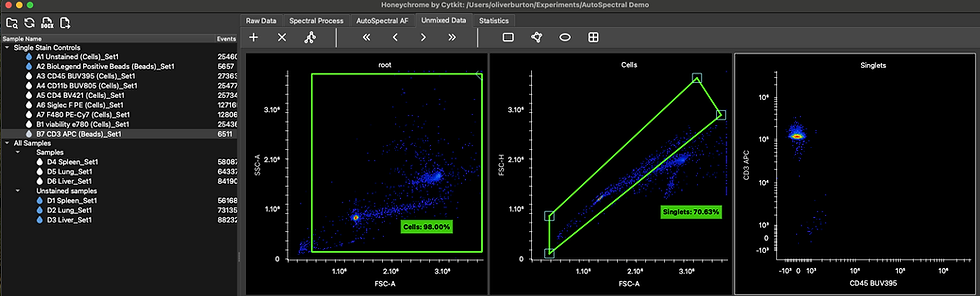
Once you have extracted spectral profiles, the data can be viewed in the Unmixed Data tab. There is no separate unmixing step--they're already unmixed.
AutoSpectral Autofluorescence Extraction
The second part of the AutoSpectral workflow that has been incorporated into Honeychrome is the per-cell autofluorescence extraction. To use this, head over to the AutoSpectral AF tab.
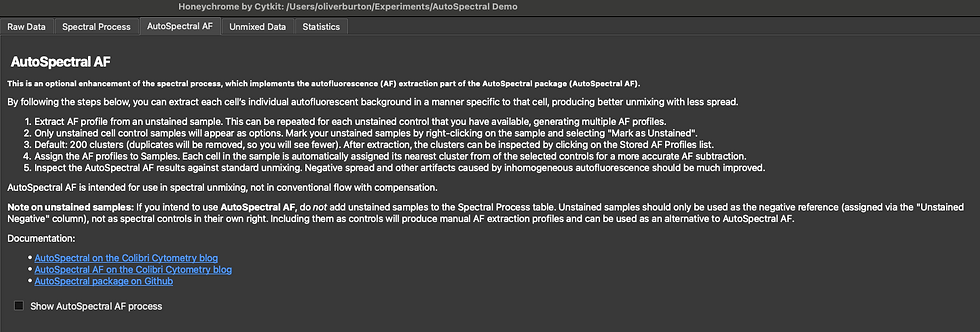
Tick the "Show AutoSpectral AF process" to use it.
Before we start using it, I'm going to make a point that you should not use the per-cell AF extraction in combination with manual extraction of single or multiple AF signatures. So, by default, unstained samples are not included in Honeychrome's spectral model, and you shouldn't see any in the Spectral Process table or the Profiles Viewer. If you do, remove those and recalculate the profiles before using AutoSpectral AF.
Now, select the unstained sample you want to use as a source of autofluorescence from the drop-down (all cell-based samples marked as unstained should appear here).

Click "Extract AF Profile".
Here's what the liver looks like:

If you have multiple sources of AF, like I have multiple unstained tissue samples in this experiment, extract the AF from each one. You can, if you want, save the profiles for later use as a CSV file. Click on each set of profiles below the "Stored AF Profiles" plot to view them.
Now, let's move to the unmixing process. We first want to assign our AF profiles to the samples. There's a tool here to let you play around with this, testing the impact on the unmixing. Let's assign the profiles from the unstained liver to the fully stained liver, then see how it looks.

Click on the sample on the lefthand panel to load it. The unmixing will proceed automatically, but might take some seconds for large samples.

This is a panel deliberately designed to minimize the impact of autofluorescence on the fluorophore channels. That is, this is more or less a best-case scenario for this tissue.
As with the other plots, change the transformations, parameters or gates applied by clicking on the relevant portions of the plot. Try other samples, etc.

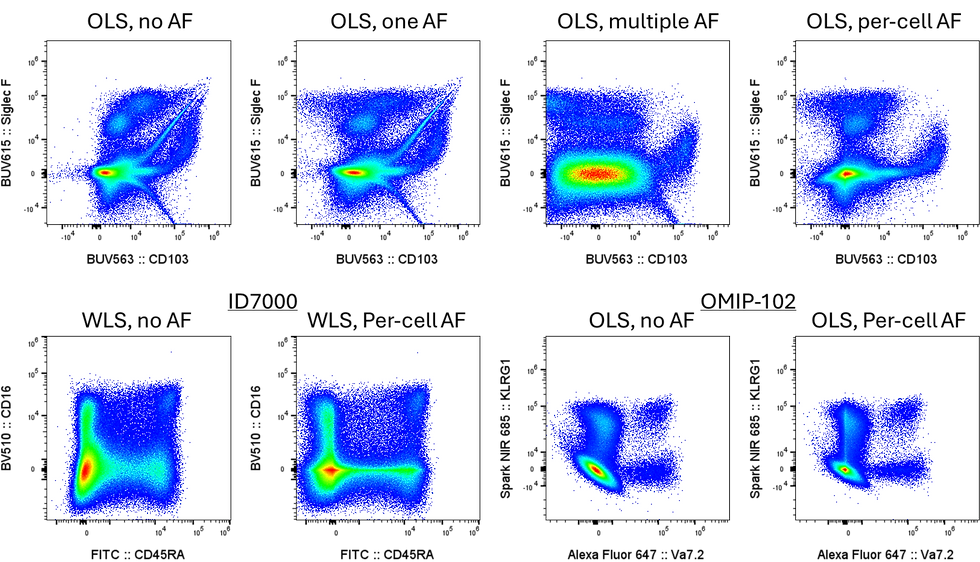
Once you have assigned AF profiles to a sample, per-cell AF extraction will be applied to the unmixing throughout, including in the Unmixed Data tab. Deselect the AF profiles to remove this and revert to standard unmixing without AF extraction.
At the moment, the per-cell fluorophore optimization part of the AutoSpectral unmixing has not been integrated into Honeychrome. You should see most of the benefits, however, just with the control cleaning and per-cell autofluorescence extraction.
Exporting the Data
Honeychrome offers basic analysis functionalities, including basic gating hierarchies and sample comparison graphing functions. We are also busy expanding Honeychrome with new data analysis pipelines and a plugin system in Python to allow you to develop and import custom workflows. In the meantime, you'll probably be looking to export your unmixed data as FCS files for use elsewhere. Here's how you do that.
In the File menu, select "Batch Export FCS Files".

A pop-up will appear. Select the samples you want to export as unmixed FCS files. They will be exported with the labels you have added to the table in the Spectral Process tab, using any assigned AF profiles, and including any spillover fine tuning (compensation adjustment) you have applied.
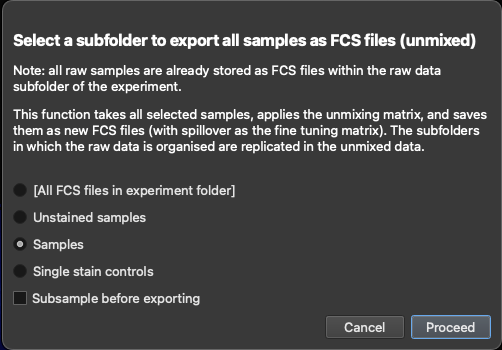
Hit "Proceed" and the export will start.

All done! There is no "Save" button because the experiment is always saved. If you close it at any point, it will reopen to the point you left off at.
Suggested Reading:
AutoSpectral pre-print
AutoSpectral help pages
David Novo et al., Generalized unmixing model for multispectral flow cytometry utilizing nonsquare compensation matrices
Laura Ferrer-Font et al., Panel Optimization for High-Dimensional Immunophenotyping Assays Using Full-Spectrum Flow Cytometry
Alexander Zambidis et al., CaptureBody – an anti-CD45 × anti-IgG bispecific antibody enables accurate unmixing for spectral flow cytometry



Comments